A Credit Note is essentially a negative invoice — it documents that you owe money back to a customer, whether due to a billing error, returned goods, or a pricing dispute.
You can use it to either issue a direct refund or keep the amount as “store credit” to offset future invoices.
One important distinction: a Credit Note handles the financial side of a return. If physical goods are coming back into stock, create the inventory return transfer from the original shipment as well. That keeps warehouse quantities and customer credits aligned.
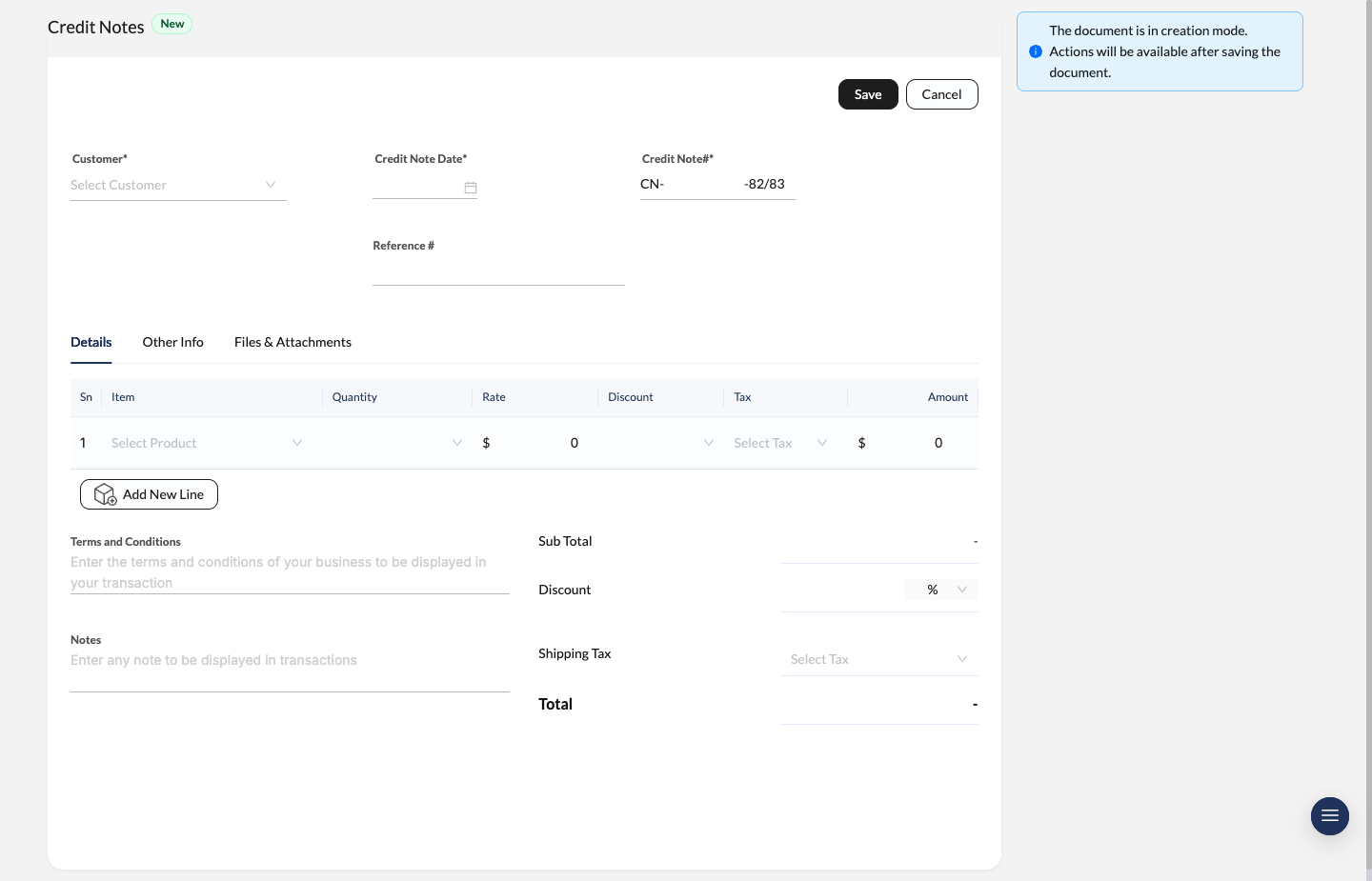
Credit Note entry screen with customer details, line-item credit rows, and total summary fields.
Create a Credit Note
Initialize the credit note
Navigate to Credit Notes and click New.
Enter customer and date details
Select the Customer from the dropdown. The system auto-generates a Credit Note# (e.g., CN-6-82/83).
- Credit Note Date: The date the credit is issued.
- Reference #: Optionally, link this to the original invoice number (e.g.,
INV-23-81/82) for easy tracking.
Add items
In the item table, add the products or services being credited.
- Select the Item and adjust the Quantity being returned.
- Verify the Rate, Discount, and applicable Tax (e.g., VAT 13%) to make sure the total credit amount is accurate.
Save the record
Review the Sub Total and Total amounts. Click Save to create the draft.
Managing Credit Note Status
Once saved, the credit note enters a lifecycle similar to an invoice. The status bar at the top right tells you exactly where things stand.
- Draft: Still working on it — no financial actions can be taken yet.
- Open: Finalized and active. The credit balance is now available to use.
- Applied: The credit has been used to pay off another invoice.
- Refunded: The credit has been paid back to the customer in cash or bank transfer.
- Void: The credit note has been cancelled.
Using Available Credits
Once a credit note is Open, the sidebar on the right gives you two options: Credit Apply and Credit Refund.
Option 1: Apply to Invoices (Store Credit)
Customer has other unpaid invoices? Use this credit to reduce their debt.
- In the right sidebar under Credit Apply, click Apply.
- A modal appears listing all open invoices for that customer.
- Find the invoice you want to pay — the table shows Invoice Amount, Due Amount, and an input field for Credits to Apply.
- Enter the amount to allocate.
- Click Apply to complete the transaction.
Option 2: Issue a Refund
Need to return money directly to the customer (via cash or bank transfer)?
- In the right sidebar under Credit Refund, click Refund.
- In the Credit Note Refund modal, fill in:
- Amount: The total being refunded (e.g.,
Rs 3,500.01). - Refund Date: When the money left your account.
- Account: The bank or cash account the money is withdrawn from.
- Payment Mode: The method (Check, Cash, Bank Transfer, etc.).
- Amount: The total being refunded (e.g.,
- Add a Description if needed, then click Refund.
Important: You can’t refund more than the Available Credits shown at the top of the refund modal.
Credit Notes vs. Return Transfers
Use both documents together when a customer sends inventory-tracked goods back:
- Create the return transfer from the original shipment to bring stock back into inventory.
- Create the Credit Note to refund the customer or leave the amount available for future invoices.
If there is no physical stock movement involved, you may only need the Credit Note.
Approval Workflow
If your team uses approval control on Credit Notes, the saved document can be submitted with Request Approval before it progresses further.
- pending requests stay visible on the document,
- approvers can Approve or Reject the current step,
- rejected credit notes can be corrected and re-submitted.
Approval rules are created in Approval Policies.