When a customer pays up, the Payment Received record is how you log it. You’ll choose exactly which invoices to cover — fully or partially — and specify the bank or cash account where the money was deposited. Once saved, your Accounts Receivable updates automatically.
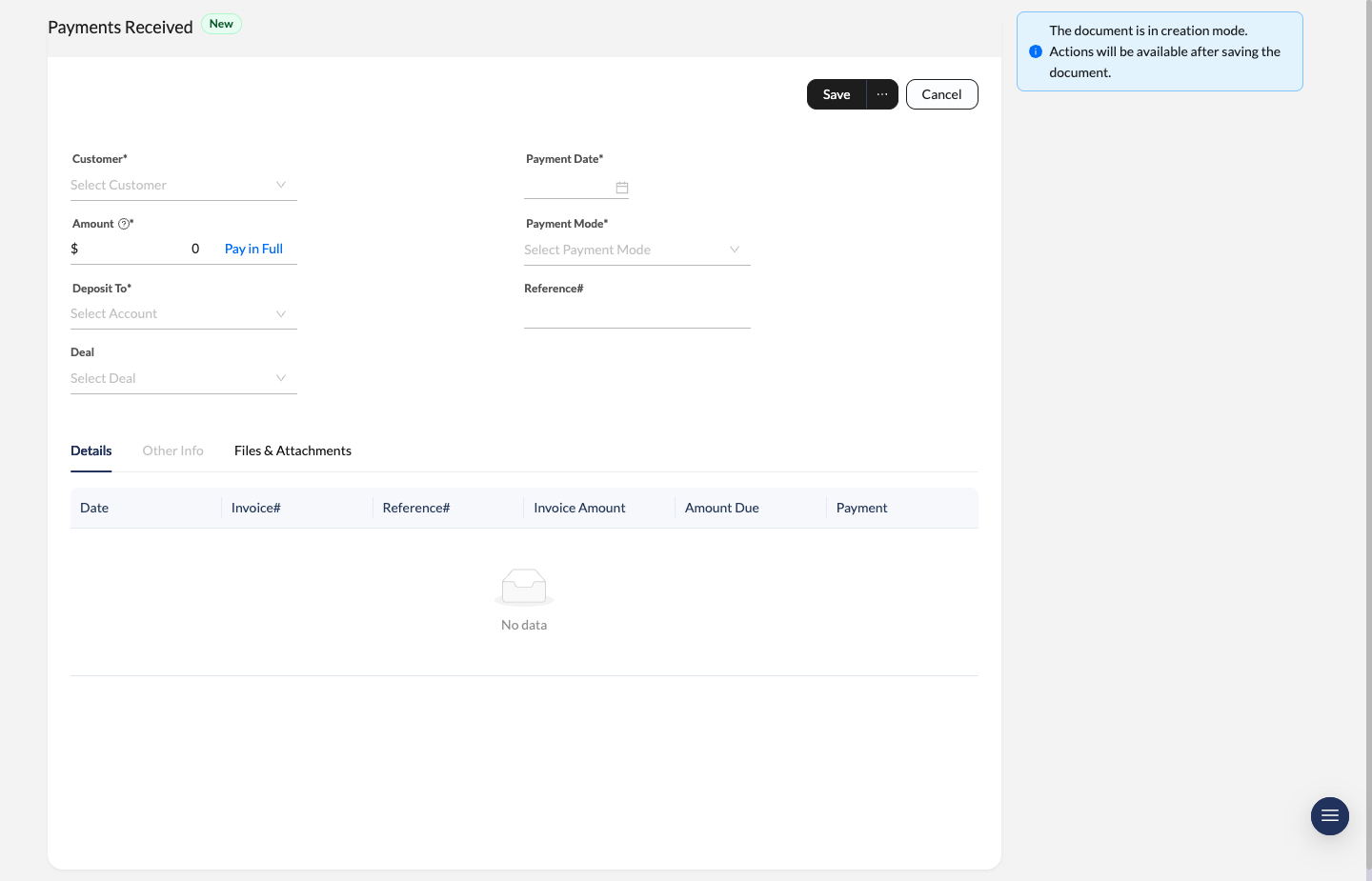
Payment Received form with customer selection, amount, payment mode, deposit account, and invoice allocation table.
Recording a Payment
Navigate to Payments Received
Go to Cashflow > Payment Received in the sidebar and click New Payment.
Select the Customer
Choose the Customer from the dropdown. The moment you do, all of their outstanding invoices auto-populate in the allocation table below.
Heads up: You can’t change the customer after a payment is saved. Selected the wrong one? Delete the payment and create a fresh one.
Fill in Payment Details
- Payment Date (required) — The date the money was actually received. Future dates aren’t allowed.
- Amount (required) — Total amount received. Hit Pay in Full to auto-fill the exact amount needed to clear every outstanding invoice at once.
- Payment Mode (required) — How the payment was made (Cash, Bank Transfer, Card, etc.).
- Deposit To (required) — The bank or cash account where the money was deposited.
- Reference# — Optional — drop in the bank transaction ID, cheque number, or any external reference for easy tracking.
- Deal — Optional CRM linkage if the payment belongs to a tracked deal.
Allocate to Invoices
The table at the bottom shows unpaid invoices for the selected customer once data is available. For each invoice you want to settle, enter the amount in the Payment column.
| Column | Description |
|---|---|
| Date | Invoice date |
| Invoice# | Invoice document number |
| Reference# | Invoice’s own reference number |
| Invoice Amount | Total invoice value |
| Amount Due | Remaining unpaid balance |
| Payment | Amount you’re applying from this payment |
Pay in Full is the fastest way to match the full outstanding balance. If you’re collecting only part of the amount, enter the payment values directly in the invoice table.
Save
Click Save. The invoices you allocated will have their outstanding balance reduced instantly. Fully paid invoices are automatically marked as settled.
Payment Status Lifecycle
| Status | What It Means |
|---|---|
| Draft | Payment is being prepared — no effect on invoice balances yet. |
| Open / Posted | Payment has been recorded and linked invoices are updated. |
| Cancelled | Payment has been voided — invoice balances are fully restored. |
Partial Payments & Unused Amount
If the Amount you record is less than the total outstanding, only the invoices you explicitly allocated will be updated — no surprises.
If the amount is more than what you allocated? The leftover becomes an Unused Amount. It stays on the customer’s account like a credit, ready to be applied to future invoices whenever you need it.
Related Records
View and manage the invoices that payments are applied to.
Customer InvoicesSee a customer’s full payment history from their profile.
Customer RecordsApproval Workflow
If your organization requires approval for Payment Received, save the payment first and then submit it for review.
- use Request Approval to start the workflow,
- approvers can Approve or Reject the current step,
- if rejected, update the payment and re-submit.
The policy is configured in Approval Policies.