As your business grows beyond a single stockroom, you’ll need to move physical goods between locations. Maybe you’re restocking a Point of Sale storefront from a primary warehouse, shuffling materials to a manufacturing floor, shipping a customer order, or receiving a vendor delivery.
The Transfer Orders module makes sure stock doesn’t get “lost in the ether” while it’s on a delivery truck.
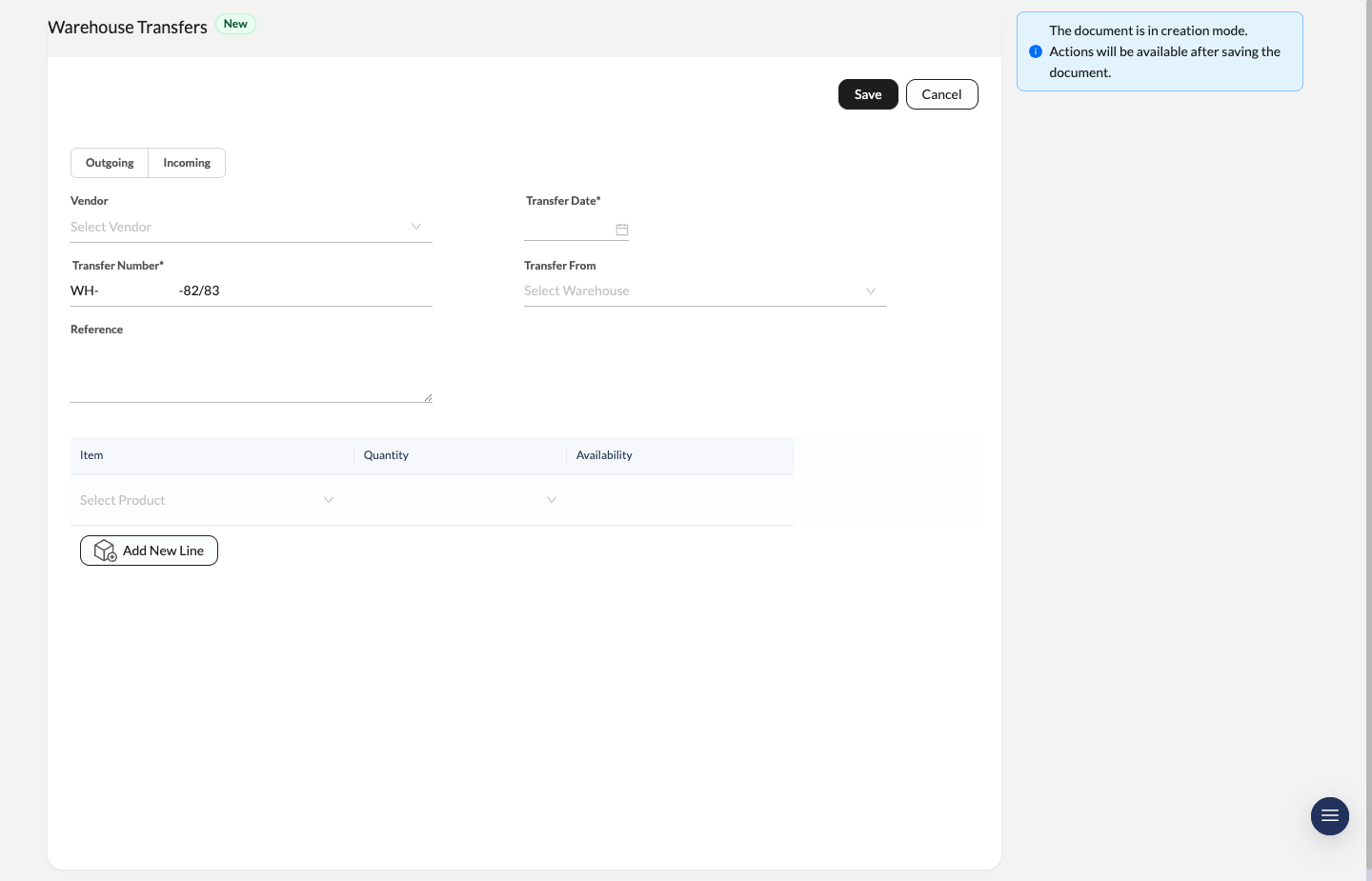
Warehouse Transfer form showing transfer type, contact, source warehouse, and item availability fields.
This is also the place to manage physical fulfillment for sales and purchasing flows. In practice, Sevenledger treats transfers the same way many users expect from Odoo-style workflows:
- Sales Order creates or links to an outgoing transfer for delivery
- Purchase Order creates or links to an incoming transfer for receipt
- Returns should be created from the original transfer, not by manually reversing quantities on the order
The Transfer Lifecycle
A Transfer Order works a lot like a Sales Order — except the “Customer” is your own secondary location.
Create the Transfer Order
Navigate to Inventory > Transfers and click New Transfer.
Define Locations
Select the Transfer From warehouse (where the inventory lives right now) and the Transferred To warehouse (where it needs to go).
Add Items
Add the items and quantities you’re moving. The system verifies that the source warehouse actually has enough Available Stock to fulfill the request.
Transit Accounts: When a transfer is in progress, stock is deducted from the source warehouse but not immediately added to the destination. It sits in a temporary “In Transit” status. This prevents the destination store from accidentally selling items that are still on a truck halfway across the city.
Mark as In Transit
When the goods physically leave the source warehouse, update the Transfer Order status to In Transit.
Receive at Destination
When the shipment arrives, the receiving manager opens the Transfer Order and marks it Received. Only at that exact moment is the stock added to the destination warehouse’s available inventory count.
Use Transfer Returns for Reverse Movement
When items need to come back after a transfer has already been completed, open the original transfer and use Create Return.
That return flow lets you:
- select any or all transferred items,
- enter the exact return quantity for each line,
- create a linked return transfer with the correct return date and document number.
This matters because a return is a new inventory movement. Editing the old transfer or changing the original sales/purchase document after the fact makes stock history harder to trust.
Use transfer returns for the stock movement itself. If money also needs to be refunded or credited, handle that separately with a customer Credit Note or Vendor Credit.
Transfer Status Lifecycle
- Draft: Transfer is being prepared — no stock movement yet.
- In Progress: Transfer has been initiated.
- In Transit: Goods have left the source warehouse.
- Transferred: Stock has been dispatched (for Outgoing type).
- Received: Stock has arrived and been accepted at the destination.
- Delivered: Delivery confirmed.
- Cancelled: Transfer was voided.
Inter-Company Transfers (Advanced)
If you operate multiple distinct legal entities (organizations) within your Sevenledger environment, a simple warehouse transfer won’t be legally compliant.
Moving physical goods between two distinct tax entities requires a financial transaction:
- Org A creates a standard Sales Order and issues an Invoice to Org B.
- Org B receives the stock via a standard Purchase Order and logs a Vendor Bill.
Approval Workflow
Warehouse Transfers can also be controlled by approval policy.
- save the transfer,
- use Request Approval when approval is required,
- approvers review the request step by step,
- if rejected, make changes and re-submit the transfer.
Set this up in Approval Policies.